


OOR3D v1.2.2: Introducing Brand Instructions
Teach BrainGPT how to handle your product names, profit, and more through Brand Instructions, catch IMVU issues before exporting, and spend less time on repetitive work.
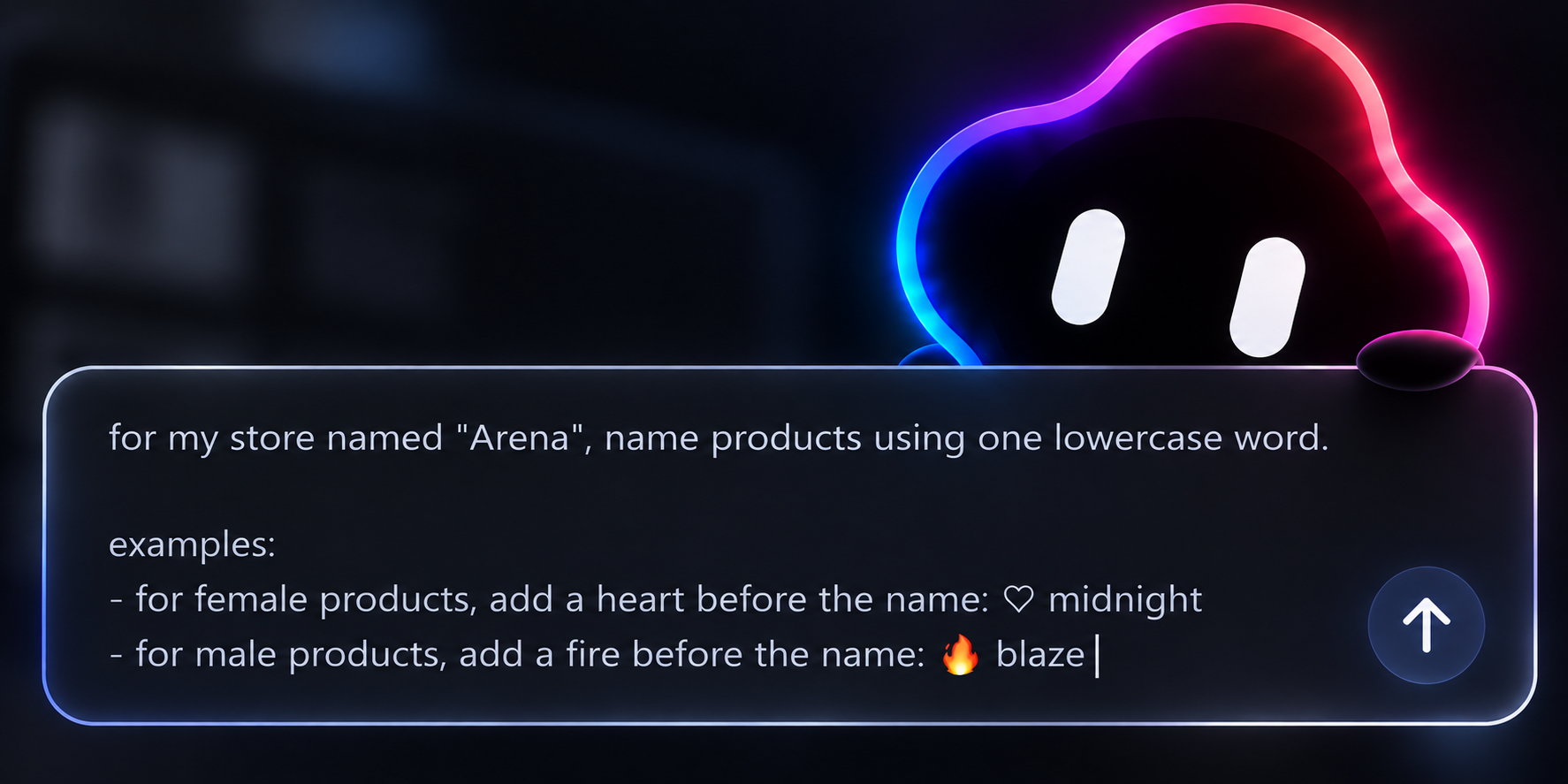
Brand Instructions
You can now give BrainGPT instructions for how you want each of your Brands to operate. Brand Instructions are set per game, so the same Brand can have different instructions depending on where you're publishing.
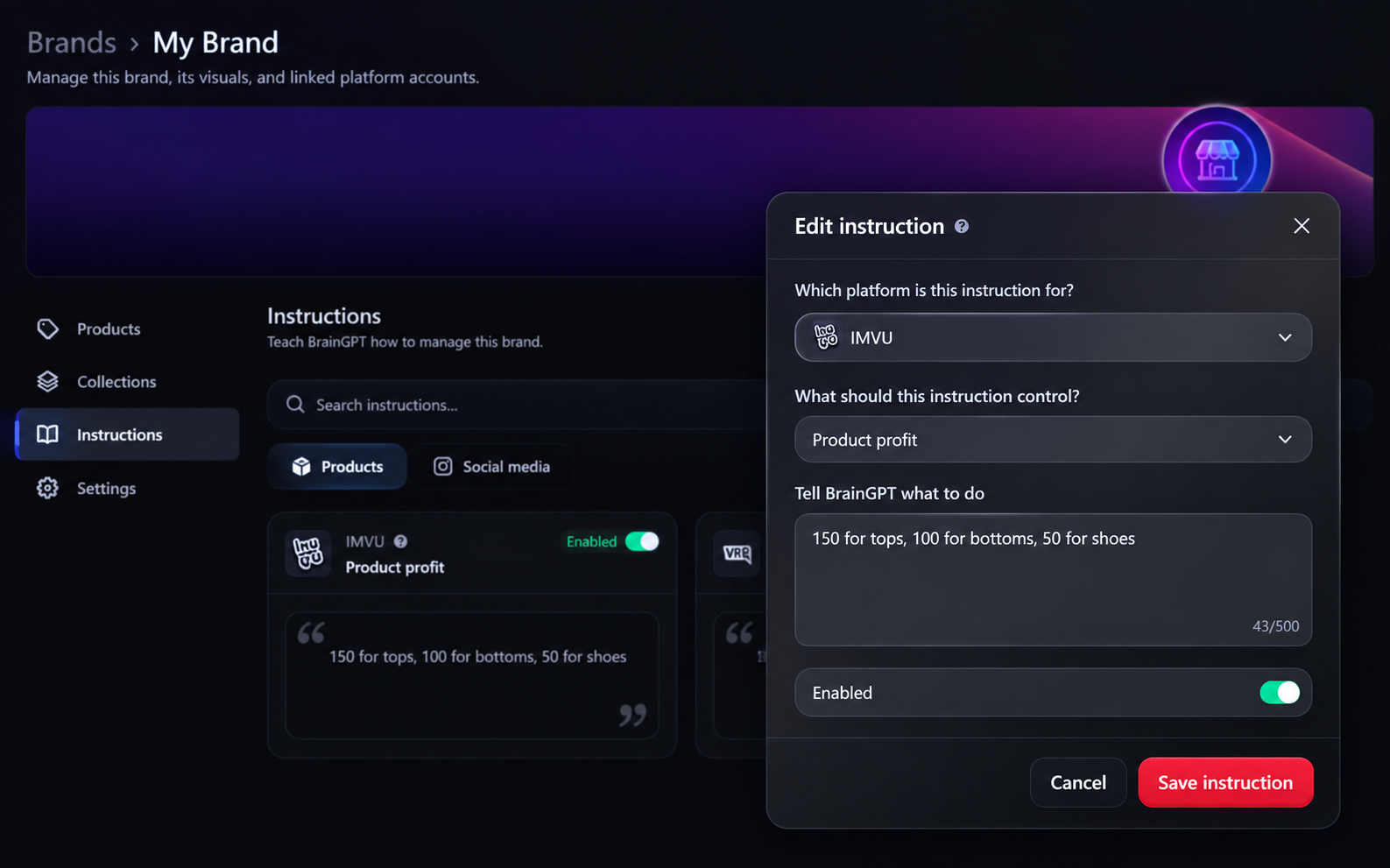
For IMVU, you can currently teach BrainGPT:
Product Names: How you want your products named when exporting them to IMVU Studio.
Product Profit: How much profit you want applied to your products when preparing IMVU Studio exports.
Once set, BrainGPT can follow these instructions automatically when working with that Brand.
Find it under Workspace > Brands > Select your Brand > Manage > Instructions.
IMVU Export Check
You can now see whether a product is too heavy for IMVU before exporting it.
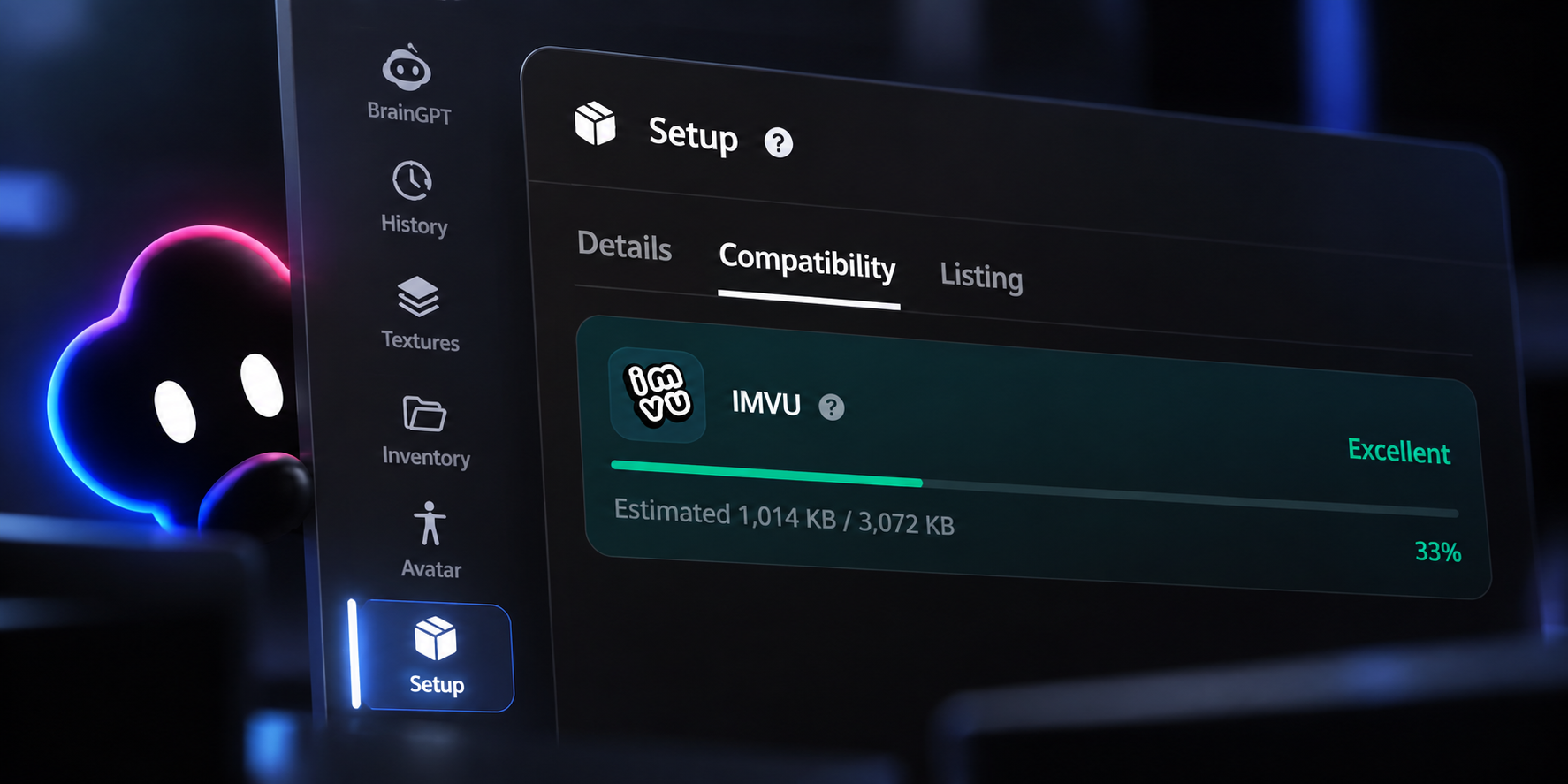
We calculate your product's Weight and KB similarly to IMVU Studio, giving you a pretty accurate estimate of whether your product is within IMVU's limits.
No more exporting a product just to open IMVU Studio and find out it's too heavy. You'll know directly inside OOR3D before sending it off.
Saying goodbye to Overlay
We're retiring Overlay.
Overlay was originally built to give you more control over texture editing, but BrainGPT has gotten significantly better at generating and editing textures directly.
Instead of switching between tools, you can now simply tell BrainGPT what you want changed and let it handle the edit.
This means fewer tools to manage and a simpler creation workflow.
What's next ?
We're continuing to make BrainGPT more aware of how you want to work.
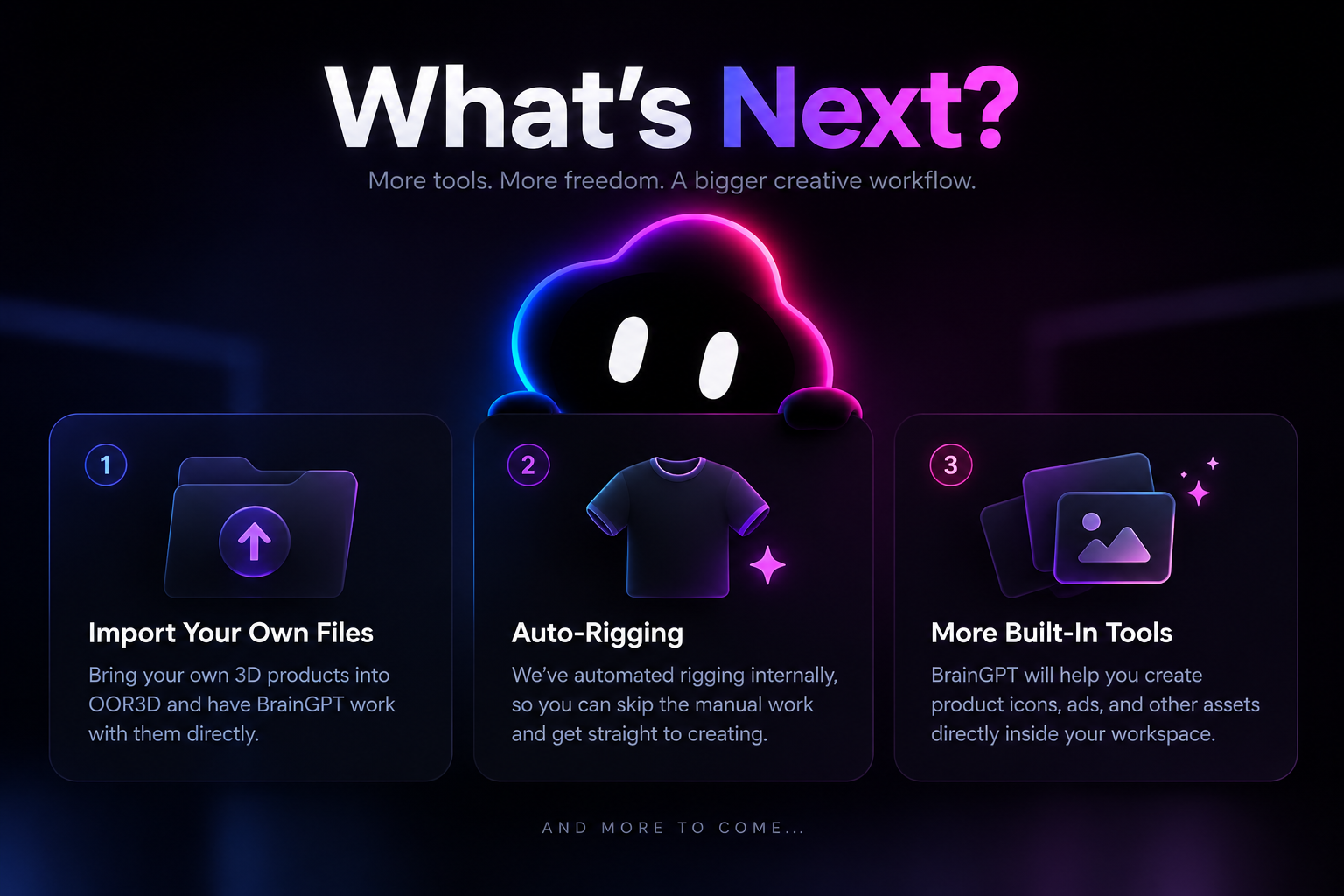
Brand Instructions are the beginning of that. Over time, you'll be able to teach BrainGPT more about how each Brand should create, make icons, and publish products across different virtual worlds.